AI调试136版,我做出了这款Vue图片上传裁切工具
在业务系统后台中有很多用到上传图片的地方,一直都是前端只标注各处图片上传的尺寸,运营根据尺寸做固定切图上传,有时候没注意就会上传未经压缩的图片。就想着弄一个图片上传组件能实现canvas切图,最好是跟微信公众号封面图配图上传的裁切效果差不多的,然后就陆续花了几天时间让”扣子AI“帮我使用vue实现这些功能,其实前面20版左右已经有个差不多能用的版本的,后面我又陆续增加了一些其他功能改动起来就又修改了很多版本。在细节方面有的地方还是得人工修改来得快,如果让AI修改反反复复改好几次自己直接改代码还来得快。
本来想放出中间版本的效果然后对比最终成品,但毕竟是AI帮忙完成的就直接出最终效果吧,后面也会附上源码(vue组件,适合二次改造后灵活使用)。
效果图
↓ 可以自定义图片上传数量限制,上传&预览图尺寸大小,上传后裁切尺寸,上传url地址
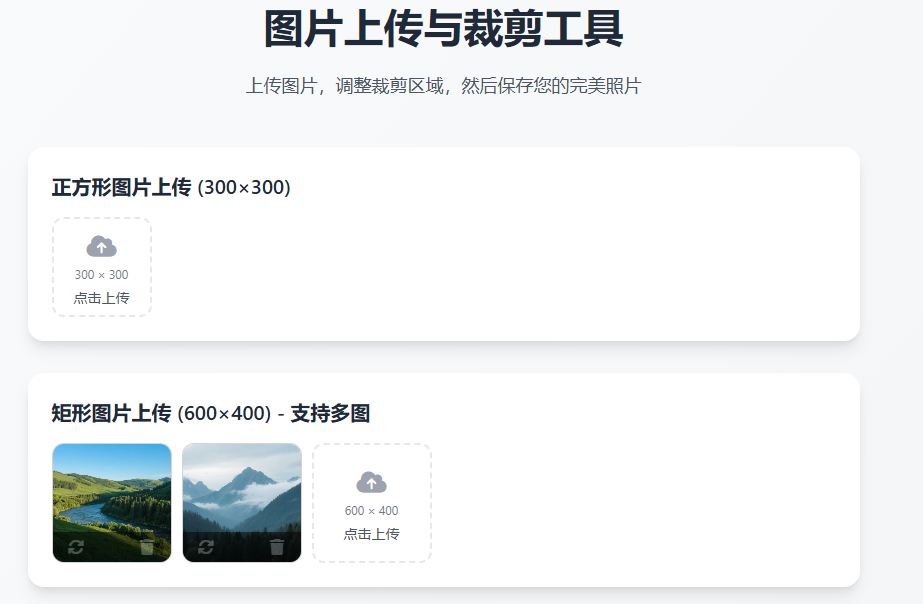
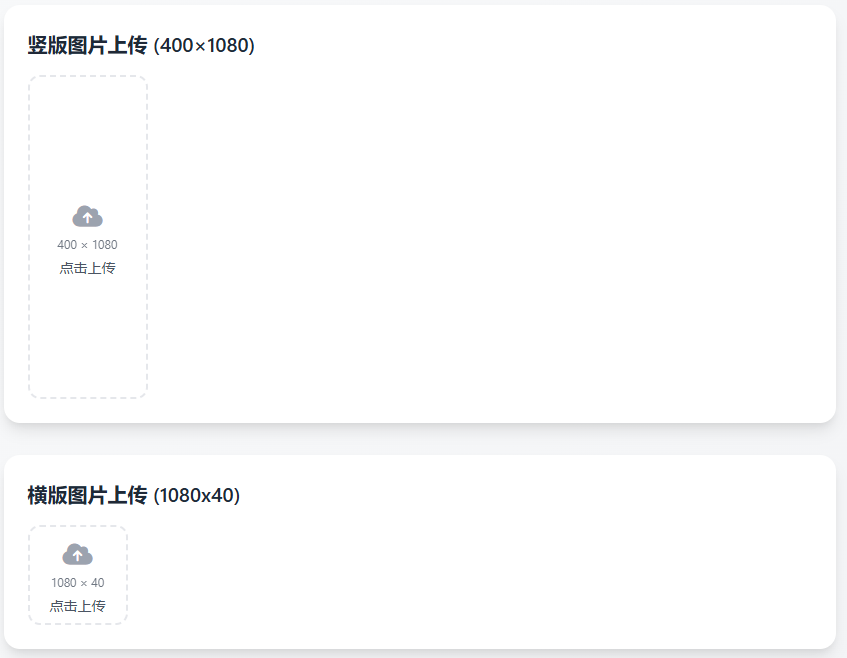
↓ 缩放裁切模式,会自动调整原图及裁切画布 适应左侧操作区域的大小,支持鼠标滚轮缩放以及键盘方向键微调移动。最终裁切方式是计算裁切区域后直接放到到原始图片尺寸进行裁切 确保图片不会失真,然后再将裁切好的图片整体缩放到目标尺寸大小以便上传或下载。
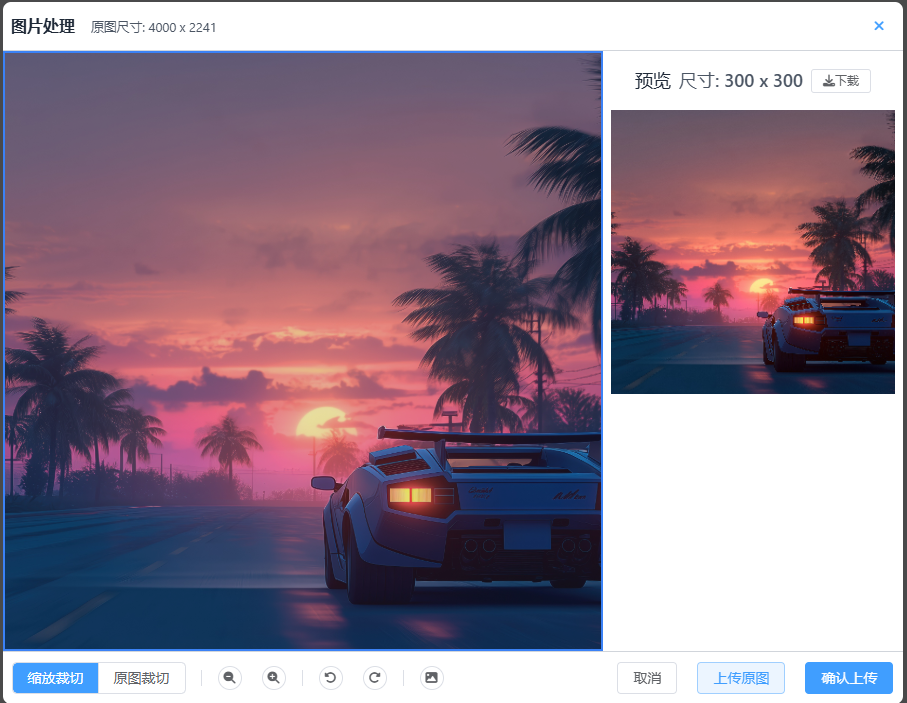
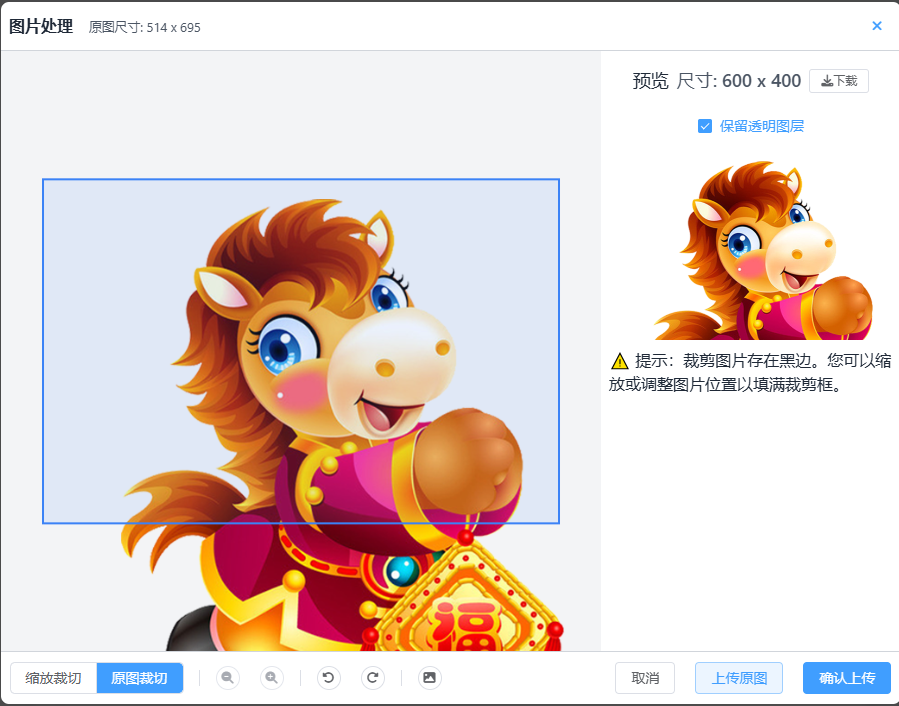
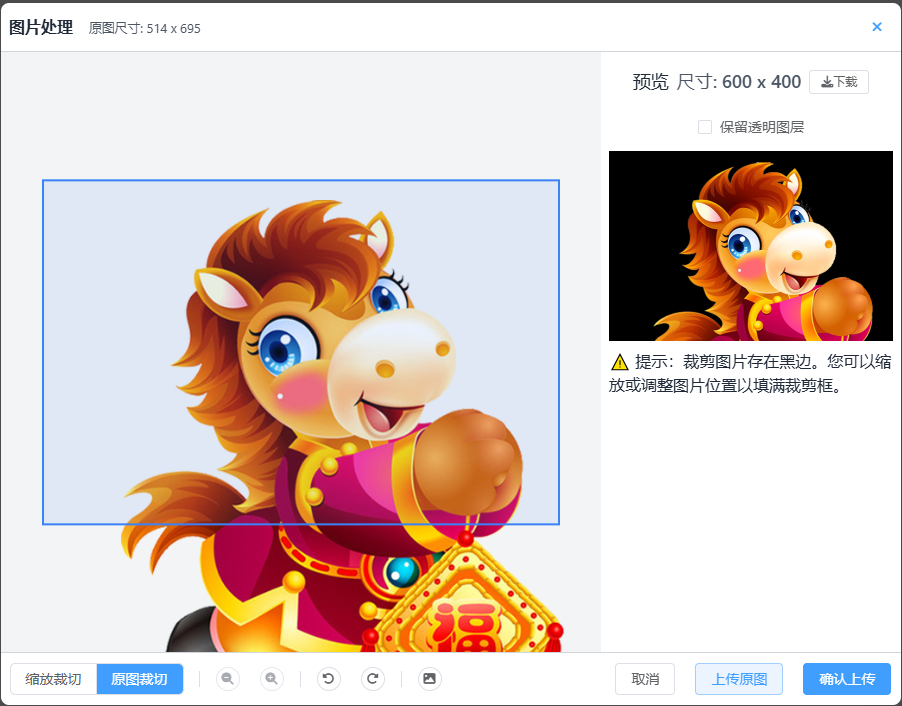
↓ 如果是带透明通道的png图片,会提供是否保留透明图层的选项,有些C端图片要有透明效果就必须保留透明通道否则到时候就有黑/白背景。另外原图裁切模式是指原始图片和目标尺寸都是1:1的相对大小,这种因为不存在图片缩放操作一般原始图比目标尺寸大的时候使可以用这个模式。当然也提供了一个上传原图的功能,如果canvas处理因浏览器兼容性有问题时可尝试使用这个功能。
↓ 如果限制只能1张图,点击上传会提示错误。

Vue图片上传裁切项目源码
App.vue
<template>
  <div class="container">
    <header class="header">
      <h1>图片上传与裁剪工具</h1>
      <p>
        上传图片,调整裁剪区域,然后保存您的完美照片
      </p>
    </header>

    <main class="main">
      <!-- 示例1: 正方形裁剪 (300x300) -->
      <section class="section">
        <h2 class="section-title">正方形图片上传 (300×300)</h2>
         <ImageCropUploader
           :cropWidth="300"
           :cropHeight="300"

           @upload-success="handleUploadSuccess"
           @upload-error="handleUploadError"
        />
      </section>

      <!-- 示例2: 矩形裁剪 (600x400) - 展示多图功能 -->
      <section class="section">
        <h2 class="section-title">矩形图片上传 (600×400) - 支持多图</h2>
         <ImageCropUploader
           :cropWidth="600"
           :cropHeight="400"
           uploadUrl="https://upload.ranjuan.cn/up.php?action=upload"
           :defaultImageUrl="[
             'https://space.coze.cn/api/coze_space/gen_image?image_size=landscape_16_9&prompt=Example%20image%20with%20landscape%20orientation&sign=4d9418024b9576e730819c1417ac2760',
             'https://space.coze.cn/api/coze_space/gen_image?image_size=landscape_16_9&prompt=Beautiful%20mountain%20landscape%20with%20trees&sign=66e6d3f53cde53c7128a5373dbed6a13'
           ]"
           :uploaderWidth="120"
           :uploaderHeight="120"
           :maxImages="3"
           @upload-success="handleUploadSuccess"
           @upload-error="handleUploadError"
        />
      </section>

      <!-- 示例3: 竖版裁剪 (400x1080) -->
      <section class="section">
        <h2 class="section-title">竖版图片上传 (400×1080)</h2>
         <ImageCropUploader
           :cropWidth="400"
           :cropHeight="1080"
           uploadUrl="https://upload.ranjuan.cn/up.php?action=upload"
           :uploaderWidth="120"
           :uploaderHeight="324"
           :maxImages="2"
           @upload-success="handleUploadSuccess"
           @upload-error="handleUploadError"
        />
      </section>

      <!-- 示例4: 横版裁剪 (1080x40) -->
      <section class="section">
        <h2 class="section-title">横版图片上传 (1080x40)</h2>
         <ImageCropUploader
           :cropWidth="1080"
           :cropHeight="40"
           :maxImages="1"
           @upload-success="handleUploadSuccess"
           @upload-error="handleUploadError"
        />
      </section>

      <!-- 上传结果展示 -->
      <section id="upload-result" class="section upload-result" v-if="latestImageUrl">
        <h2 class="section-title">最近上传结果</h2>
        <div class="result-content">
          <p class="result-label">上传成功的图片URL:</p>
          <code id="image-url" class="result-url">
            {{ latestImageUrl }}
          </code>
        </div>
      </section>
    </main>

    <footer class="footer">
      <p>© 2026 图片上传与裁剪工具</p>
    </footer>
  </div>
</template>

<script>
import ImageCropUploader from './components/ImageCropUploader.vue';

export default {
  name: 'App',
  components: {
    ImageCropUploader,
  },
  data() {
    return {
      latestImageUrl: null,
    };
  },
  methods: {
    handleUploadSuccess(url) {
      this.latestImageUrl = url;
      // 这里可以处理上传成功的逻辑,比如显示成功消息等
    },
    handleUploadError(error) {
      console.error('上传失败:', error);
      // 这里可以处理上传失败的逻辑,比如显示错误消息等
    },
  },
};
</script>

<style>
/* 基础样式 */
:root {
  --primary-color: #3B82F6;
  --bg-color: #f9fafb;
  --bg-gradient: linear-gradient(to bottom right, #f9fafb, #f3f4f6);
  --text-color: #1f2937;
  --text-secondary: #4b5563;
  --border-color: #d1d5db;
  --border-dashed: #e5e7eb;
  --shadow-sm: 0 1px 2px 0 rgba(0, 0, 0, 0.05);
  --shadow-md: 0 4px 6px -1px rgba(0, 0, 0, 0.1), 0 2px 4px -1px rgba(0, 0, 0, 0.06);
  --shadow-lg: 0 10px 15px -3px rgba(0, 0, 0, 0.1), 0 4px 6px -2px rgba(0, 0, 0, 0.05);
  --radius-lg: 0.75rem;
  --radius-xl: 1rem;
  --radius-full: 9999px;
}

* {
  margin: 0;
  padding: 0;
  box-sizing: border-box;
}

body {
  font-family: -apple-system, BlinkMacSystemFont, 'Segoe UI', 'Helvetica', 'Arial', sans-serif;
  font-size: 16px;
  line-height: 1.5;
  color: var(--text-color);
  background: var(--bg-gradient);
  min-height: 100vh;
}

/* 布局工具 */
.container {
  max-width: 56rem;
  margin: 0 auto;
  padding: 1rem 2rem;
}

.header {
  margin-bottom: 3rem;
  text-align: center;
}

.header h1 {
  font-size: 2.5rem;
  font-weight: 700;
  margin-bottom: 1rem;
  color: var(--text-color);
}

.header p {
  font-size: 1.125rem;
  color: var(--text-secondary);
}

.main {
  display: grid;
  gap: 2rem;
}

.section {
  background: white;
  border-radius: var(--radius-xl);
  box-shadow: var(--shadow-lg);
  padding: 1.5rem;
}

.section-title {
  font-size: 1.25rem;
  font-weight: 600;
  margin-bottom: 1rem;
}

.footer {
  margin-top: 3rem;
  text-align: center;
  color: var(--text-secondary);
  padding: 1rem 0;
}

/* 上传结果展示 */
.upload-result {
  display: block;
}

.result-content {
  padding: 1rem;
  border: 1px solid var(--border-color);
  border-radius: var(--radius-lg);
}

.result-label {
  color: var(--text-secondary);
  margin-bottom: 0.5rem;
}

.result-url {
  display: block;
  background-color: #f3f4f6;
  padding: 0.75rem;
  border-radius: var(--radius-lg);
  font-size: 0.875rem;
  font-family: monospace;
  overflow-x: auto;
}
</style>
./components/ImageCropUploader.vue
<template>
<div class="image-crop-uploader">
<!-- 隐藏的文件输入 -->
<input
type="file"
ref="fileInput"
accept="image/*"
class="image-input"
@change="handleFileSelect"
/>
<!-- 隐藏的文件输入 - 用于模态框内更换图片 -->
<input
type="file"
ref="modalFileInput"
accept="image/*"
class="image-input"
@change="handleModalFileSelect"
/>
<!-- 图片网格布局:缩略图+上传区域 -->
<div class="images-grid">
<!-- 循环显示已上传或默认的图片 -->
<div
v-for="(imageUrl, index) in thumbnailUrls"
:key="index"
class="image-item"
:style="{ width: uploaderWidth + 'px', height: uploaderHeight + 'px' }"
>
<div class="thumbnail-container relative h-full w-full overflow-hidden group">
<img
:src="imageUrl"
:alt="`预览图 ${index + 1}`"
class="thumbnail-image"
@click="viewLargeImage(imageUrl)"
/>
<!-- 图片操作区域 - 固定在缩略图底部 -->
<div class="operation-div" >
<!-- 左侧:更换图片 -->
<div
@click.stop="openReplaceImage(index)"
class="flex-1 flex justify-center items-center cursor-pointer operation-btn h-full text-xs"
>
<i class="fa-solid fa-arrows-rotate mr-1"></i>
</div>
<!-- 分割线 -->
<div class="w-[1px] h-4 bg-white bg-opacity-30" style="width:20%;"></div>
<!-- 右侧:删除图片 -->
<div
@click.stop="deleteImage(index)"
class="flex-1 flex justify-center items-center cursor-pointer operation-btn h-full text-xs"
>
<i class="fa-solid fa-trash mr-1"></i>
</div>
</div>
</div>
</div>
<!-- 上传区域 - 始终在缩略图列表的右侧 -->
<div
class="upload-item"
:style="{ width: uploaderWidth + 'px', height: uploaderHeight + 'px' }"
>
<div class="upload-area h-full w-full" @click="openAddImage">
<div class="upload-icon"><i class="fa fa-cloud-upload" aria-hidden="true"></i></div>
<p class="upload-size-info">{{ cropWidth }} × {{ cropHeight }}</p>
<p class="upload-text">点击上传</p>
</div>
</div>
</div>
<!-- 上传结果展示 - 显示最新上传的图片URL -->
<div v-if="latestImageUrl" class="upload-result mt-4">
<div class="result-content">
<p class="result-label">上传成功的图片URL:</p>
<code class="result-url" :title="latestImageUrl">{{ latestImageUrl }}</code>
</div>
</div>
<!-- 裁剪模态弹窗 -->
<div
id="crop-modal"
class="modal"
v-if="isModalOpen"
>
<div class="modal-content">
<!-- 模态框头部 -->
<div class="modal-header">
<h2>图片处理
<span v-if="imageDimensions.width > 0" class="original-size">
原图尺寸: {{ imageDimensions.width }} x {{ imageDimensions.height }}
</span>
</h2>
<el-button
type="text"
@click="hideModal"
circle
>
<i class="fa-solid fa-times"></i>
</el-button>
</div>
<!-- 模态框内容 -->
<div class="modal-body">
<!-- 左侧:原图与裁剪框 -->
<div id="image-container" class="image-container">
<div
id="operation-area"
class="operation-area"
@mousedown="handleMouseDown"
@mouseenter="handleMouseEnter"
@mouseleave="handleMouseLeave"
@wheel.prevent="handleWheel"
>
<!-- 显示图片 -->
<img
id="preview-image"
:src="selectedImageSrc"
alt="预览"
class="preview-image"
:style="imageStyle"
/>
<!-- 裁剪框指示 - 居中显示 -->
<div
id="crop-box"
class="crop-box"
:style="{
width: cropBoxDisplayWidth + 'px',
height: cropBoxDisplayHeight + 'px',
}"
></div>
</div>
</div>
<!-- 右侧:预览区域 -->
<div class="preview-section">
<div class="preview-header">
<!-- 下载保存图片-->
<h3 class="preview-title">预览</h3>
<span class="preview-size">尺寸: {{ cropWidth }} x {{ cropHeight }}</span>
<el-button @click="handleSaveCroppedImage" size="small" >
<i class="fa-solid fa-download mr-1"></i>下载
</el-button>
</div>
<!-- 保留透明图层选项 - 仅当图片有透明通道时显示 -->
<div v-if="hasAlphaChannel" class="transparency-option-container">
<el-checkbox
v-model="preserveTransparency"
@change="drawPreview"
class="transparency-option"
>
保留透明图层
</el-checkbox>
</div>
<div class="preview-wrapper">
<canvas
ref="previewCanvas"
class="preview-canvas"
:width="cropWidth"
:height="cropHeight"
></canvas>
</div>
<!-- 显示黑边提示 -->
<div v-if="hasBlackBorder" class="bg-amber-50 border-l-4 border-amber-500 p-3 rounded text-sm text-amber-700 w-full mt-2">
⚠️ 提示:裁剪图片存在黑边。您可以缩放或调整图片位置以填满裁剪框。
</div>
</div>
</div>
<!-- 底部控制栏 -->
<div class="modal-footer">
<div class="control-group">
<!-- 裁切模式选择 -->
<el-radio-group v-model="cropMode" class="mr-4">
<el-radio-button label="scale">缩放裁切</el-radio-button>
<el-radio-button label="original">原图裁切</el-radio-button>
</el-radio-group>
<!-- 缩放按钮 - 在原图裁切模式下禁用 -->
<el-divider direction="vertical" class="mx-2" />
<el-button
@click="handleZoom('out')"
:disabled="cropMode === 'original'"
circle
size="small"
title="缩小"
>
<i class="fa-solid fa-search-minus"></i>
</el-button>
<el-button
@click="handleZoom('in')"
:disabled="cropMode === 'original'"
circle
size="small"
title="放大"
>
<i class="fa-solid fa-search-plus"></i>
</el-button>
<!-- 旋转按钮 -->
<el-divider direction="vertical" class="mx-2" />
<el-button
@click="handleRotate(-90)"
circle
size="small"
title="逆时针旋转"
>
<i class="fa-solid fa-rotate-left"></i>
</el-button>
<el-button
@click="handleRotate(90)"
circle
size="small"
title="顺时针旋转"
>
<i class="fa-solid fa-rotate-right"></i>
</el-button>
<!-- 新增:更换图片按钮 -->
<el-divider direction="vertical" class="mx-2" />
<el-button
@click="openReplaceImageInModal"
circle
size="small"
title="更换图片"
>
<i class="fa-solid fa-image"></i>
</el-button>
</div>
<div class="action-group">
<el-button @click="hideModal">
取消
</el-button>
<el-button type="primary" plain @click="handleUploadOriginal">
上传原图
</el-button>
<el-button type="primary" @click="handleConfirmCrop">
确认上传
</el-button>
</div>
</div>
</div>
</div>
<!-- 大图预览浮窗 -->
<div v-if="isLargeImageOpen" class="large-image-overlay" @click="closeLargeImage">
<div class="large-image-container" @click.stop>
<button class="large-image-close" @click="closeLargeImage">
<i class="fa-solid fa-times"></i>
</button>
<img :src="currentLargeImage" alt="大图预览" class="large-image" />
</div>
</div>
<!-- 通知提示 -->
<div id="toast" class="toast" :class="toastClass" :style="toastStyle">
{{ toastMessage }}
</div>
</div>
</template>
<script>
export default {
name: 'ImageCropUploader',
components: {},
props: {
// 预设的裁剪尺寸
cropWidth: {
type: Number,
default: 300,
},
cropHeight: {
type: Number,
default: 300,
},
// 上传URL
uploadUrl: {
type: String,
default: 'https://upload.ranjuan.cn/up.php?action=upload',
},
// 默认图片URL - 可以是单张或多张
defaultImageUrl: {
type: [String, Array],
default: null
},
// 上传区域宽度
uploaderWidth: {
type: Number,
default: 100
},
// 上传区域高度
uploaderHeight: {
type: Number,
default: 100
},
// 最大图片数量限制
maxImages: {
type: Number,
default: 1
}
},
data() {
return {
// 左侧操作区域固定为600x600px
OPERATION_AREA_SIZE: 600,
// 状态变量
isModalOpen: false,
selectedImageSrc: null,
latestImageUrl: null, // 只保存最新上传的图片URL
thumbnailUrls: [], // 使用数组存储多张图片的URL
manualScale: 1, // 手动缩放比例
rotation: 0,
position: { x: 0, y: 0 },
isDragging: false,
dragStart: { x: 0, y: 0 },
imageDimensions: { width: 0, height: 0 },
cropBoxScale: 1, // 矩形选框的缩放比例
initialImageScale: 1, // 图片相对于操作区域的初始缩放比例
originalImageData: null, // 存储原始图片数据,用于高质量裁剪
// Toast 状态
toastMessage: '',
toastVisible: false,
toastType: 'success', // 'success' 或 'error'
// 用于跟踪是否存在黑色背景
hasBlackBorder: false,
// 缩略图相关状态
isLargeImageOpen: false, // 是否显示大图预览浮窗
currentLargeImage: null, // 当前正在预览的大图
// 新增:裁切模式 - 默认为缩放裁切
cropMode: 'scale', // 'scale' 或 'original'
// 新增:控制图片操作区域焦点状态
isImageAreaFocused: false,
// 新增:用于存储创建的canvas实例,以便后续释放
tempCanvases: [],
// 当前正在被替换的图片索引
replacingImageIndex: -1,
// 是否有透明通道
hasAlphaChannel: false,
// 是否保留透明图层
preserveTransparency: true
};
},
mounted() {
// 初始化默认图片
this.initDefaultImages();
},
watch: {
// 监听裁切模式变化,执行相应的重置操作
cropMode(newMode) {
// 无论切换到哪种模式,都完全重置所有状态
this.position = { x: 0, y: 0 }; // 重置位置为居中
this.manualScale = 1; // 重置手动缩放比例
this.rotation = 0; // 重置旋转角度
if (this.imageDimensions.width > 0 && this.imageDimensions.height > 0) {
if (newMode === 'original') {
// 原图裁切模式下,计算最小缩放倍率
const minScale = Math.min(
this.OPERATION_AREA_SIZE / this.imageDimensions.width,
this.OPERATION_AREA_SIZE / this.imageDimensions.height,
this.OPERATION_AREA_SIZE / this.cropWidth,
this.OPERATION_AREA_SIZE / this.cropHeight
);
this.cropBoxScale = minScale;
// 重新计算图片相对于操作区域的初始缩放比例
const imgRatio = this.imageDimensions.width / this.imageDimensions.height;
const areaRatio = this.OPERATION_AREA_SIZE / this.OPERATION_AREA_SIZE; // 1:1
let scaleY = 1;
if (imgRatio > areaRatio) {
// 图片更宽,按宽度缩放
scaleY = this.OPERATION_AREA_SIZE / this.imageDimensions.width;
} else {
// 图片更高或正方形,按高度缩放
scaleY = this.OPERATION_AREA_SIZE / this.imageDimensions.height;
}
this.initialImageScale = scaleY;
} else if (newMode === 'scale') {
// 缩放裁切模式下,重新计算裁剪框的缩放比例
let scaleX = 1;
if (this.cropWidth > this.cropHeight) {
scaleX = this.OPERATION_AREA_SIZE / this.cropWidth;
} else {
scaleX = this.OPERATION_AREA_SIZE / this.cropHeight;
}
this.cropBoxScale = scaleX;
// 重新计算图片相对于操作区域的初始缩放比例
const imgRatio = this.imageDimensions.width / this.imageDimensions.height;
const areaRatio = this.OPERATION_AREA_SIZE / this.OPERATION_AREA_SIZE; // 1:1
let scaleY = 1;
if (imgRatio > areaRatio) {
// 图片更宽,按宽度缩放
scaleY = this.OPERATION_AREA_SIZE / this.imageDimensions.width;
} else {
// 图片更高或正方形,按高度缩放
scaleY = this.OPERATION_AREA_SIZE / this.imageDimensions.height;
}
this.initialImageScale = scaleY;
}
}
this.drawPreview();
}
},
computed: {
// 计算裁剪框显示尺寸
cropBoxDisplayWidth() {
return this.cropWidth * this.cropBoxScale;
},
cropBoxDisplayHeight() {
return this.cropHeight * this.cropBoxScale;
},
// 计算图片的样式
imageStyle() {
// 根据裁切模式计算总缩放比例
const totalImageScale = this.cropMode === 'original'
? Math.min(
this.OPERATION_AREA_SIZE / this.imageDimensions.width,
this.OPERATION_AREA_SIZE / this.imageDimensions.height,
this.OPERATION_AREA_SIZE / this.cropWidth,
this.OPERATION_AREA_SIZE / this.cropHeight
)
: this.initialImageScale * this.manualScale;
// 确保图片位置包含x和y偏移
return {
transform: `translate(calc(-50% + ${this.position.x}px), calc(-50% + ${this.position.y}px)) scale(${totalImageScale}) rotate(${this.rotation}deg)`,
width: `${this.imageDimensions.width}px`,
height: `${this.imageDimensions.height}px`,
cursor: this.isDragging ? 'grabbing' : 'grab',
position: 'absolute',
top: '50%',
left: '50%',
transformOrigin: 'center center',
maxWidth: 'none',
maxHeight: 'none'
};
},
// Toast 样式
toastClass() {
return {
'toast-success': this.toastType === 'success',
'toast-error': this.toastType === 'error',
};
},
toastStyle() {
return {
transform: this.toastVisible ? 'translateY(0)' : 'translateY(-20px)',
opacity: this.toastVisible ? '1' : '0',
};
},
},
methods: {
// 初始化默认图片
initDefaultImages() {
if (typeof this.defaultImageUrl === 'string' && this.defaultImageUrl) {
// 如果是单个URL,添加到数组中
this.thumbnailUrls = [this.defaultImageUrl];
} else if (Array.isArray(this.defaultImageUrl) && this.defaultImageUrl.length > 0) {
// 如果已经是数组,直接使用
this.thumbnailUrls = [...this.defaultImageUrl];
} else {
// 否则保持空数组
this.thumbnailUrls = [];
}
},
// 检测图片是否包含透明通道
async detectAlphaChannel(imageSrc) {
return new Promise((resolve) => {
// 仅对PNG格式进行检测
if (!imageSrc.toLowerCase().includes('image/png')) {
resolve(false);
return;
}
const img = new Image();
img.crossOrigin = 'anonymous';
img.src = imageSrc;
img.onload = () => {
const canvas = document.createElement('canvas');
const ctx = canvas.getContext('2d');
if (!ctx) {
resolve(false);
return;
}
// 设置canvas尺寸
canvas.width = img.width > 50 ? 50 : img.width; // 缩小图片以提高检测速度
canvas.height = img.height > 50 ? 50 : img.height;
// 绘制图片
ctx.drawImage(img, 0, 0, canvas.width, canvas.height);
// 获取图片数据
const imageData = ctx.getImageData(0, 0, canvas.width, canvas.height);
const data = imageData.data;
// 检查是否有透明度
for (let i = 3; i < data.length; i += 4) {
if (data[i] < 255) { // 如果alpha通道值小于255,说明有透明度
resolve(true);
return;
}
}
resolve(false);
};
img.onerror = () => {
resolve(false);
};
});
},
// 在模态框中打开文件选择器更换图片
openReplaceImageInModal() {
if (this.$refs.modalFileInput) {
this.$refs.modalFileInput.click();
}
},
// 处理模态框中的文件选择
handleModalFileSelect(event) {
const file = event.target.files[0];
if (file) {
if (!file.type.startsWith('image/')) {
this.showToast('请选择有效的图片文件', 'error');
return;
}
const reader = new FileReader();
reader.onload = e => {
// 先检测图片是否有透明通道
this.detectAlphaChannel(e.target.result).then(hasAlpha => {
this.hasAlphaChannel = hasAlpha;
this.preserveTransparency = hasAlpha; // 如果有透明通道,默认保留
// 重置所有状态,使用新图片
this.resetCropState(e.target.result);
});
};
reader.readAsDataURL(file);
}
// 重置input,以便可以重复选择同一个文件
if (this.$refs.modalFileInput) {
this.$refs.modalFileInput.value = '';
}
},
// 重置裁切状态,使用新图片
resetCropState(imageSrc) {
this.selectedImageSrc = imageSrc;
// 重置状态
this.manualScale = 1; // 手动调整倍率
this.rotation = 0;
this.position = { x: 0, y: 0 }; // 初始位置居中
this.hasBlackBorder = false;
this.cropMode = 'scale'; // 重置为默认的缩放裁切模式
// 加载图片并设置初始尺寸
const img = new Image();
img.src = imageSrc;
// 保存this引用,以便在回调中使用
const self = this;
img.onload = function() {
self.imageDimensions = { width: img.width, height: img.height };
// 保存原始图片数据用于高质量裁剪
const originalImg = new Image();
originalImg.src = self.selectedImageSrc;
originalImg.onload = function() {
self.originalImageData = originalImg;
// 计算矩形选框的缩放比例
if (self.cropMode === 'original') {
// 原图裁切模式下,计算最小缩放倍率
const minScale = Math.min(
self.OPERATION_AREA_SIZE / img.width,
self.OPERATION_AREA_SIZE / img.height,
self.OPERATION_AREA_SIZE / self.cropWidth,
self.OPERATION_AREA_SIZE / self.cropHeight
);
self.cropBoxScale = minScale;
} else {
// 缩放裁切模式下的原有逻辑
let scaleX = 1;
if (self.cropWidth > self.cropHeight) {
// 宽度更长,适配宽度
scaleX = self.OPERATION_AREA_SIZE / self.cropWidth;
} else {
// 高度更长,适配高度
scaleX = self.OPERATION_AREA_SIZE / self.cropHeight;
}
self.cropBoxScale = scaleX;
}
// 计算图片相对于操作区域的初始缩放比例
const imgRatio = img.width / img.height;
const areaRatio = self.OPERATION_AREA_SIZE / self.OPERATION_AREA_SIZE; // 1:1
let scaleY = 1;
if (imgRatio > areaRatio) {
// 图片更宽,按宽度缩放
scaleY = self.OPERATION_AREA_SIZE / img.width;
} else {
// 图片更高或正方形,按高度缩放
scaleY = self.OPERATION_AREA_SIZE / img.height;
}
self.initialImageScale = scaleY;
// 绘制预览
self.drawPreview();
};
};
// 显示成功提示
this.showToast('图片已更换');
},
// 显示通知提示
showToast(message, type = 'success') {
this.toastMessage = message;
this.toastType = type;
this.toastVisible = true;
setTimeout(() => {
this.toastVisible = false;
}, 3000);
},
// 计算图片旋转后的尺寸
getRotatedDimensions(width, height, angle) {
const rad = (angle * Math.PI) / 180;
const rotatedWidth = Math.abs(width * Math.cos(rad)) + Math.abs(height * Math.sin(rad));
const rotatedHeight = Math.abs(height * Math.cos(rad)) + Math.abs(width * Math.sin(rad));
return { rotatedWidth, rotatedHeight };
},
// 绘制预览图 - 当图片不足裁剪时用黑色背景填充
drawPreview() {
if (!this.$refs.previewCanvas || !this.selectedImageSrc) return;
const canvas = this.$refs.previewCanvas;
const ctx = canvas.getContext('2d');
if (!ctx) return;
// 设置canvas尺寸为裁剪尺寸
canvas.width = this.cropWidth;
canvas.height = this.cropHeight;
// 确保canvas的context设置了正确的globalCompositeOperation以保留透明度
ctx.globalCompositeOperation = 'source-over';
// 根据是否保留透明图层决定是否填充背景
if (!this.preserveTransparency) {
ctx.fillStyle = '#000000';
ctx.fillRect(0, 0, canvas.width, canvas.height);
} else if (this.hasAlphaChannel) {
// 如果保留透明图层且图片有透明通道,清空canvas(保持透明)
ctx.clearRect(0, 0, canvas.width, canvas.height);
} else {
// 否则仍然使用黑色背景
ctx.fillStyle = '#000000';
ctx.fillRect(0, 0, canvas.width, canvas.height);
}
// 调用与高清裁切相同的算法生成预览图
this.generatePreviewWithHighQualityAlgorithm(canvas, ctx);
},
// 使用与高清裁切相同的算法生成预览图
generatePreviewWithHighQualityAlgorithm(canvas, ctx) {
if (!this.selectedImageSrc || !this.originalImageData || !canvas || !ctx) return;
// 确保canvas的context设置了正确的globalCompositeOperation以保留透明度
ctx.globalCompositeOperation = 'source-over';
// 创建一个离屏canvas用于旋转和定位原始图片
const tempCanvas = document.createElement('canvas');
const tempCtx = tempCanvas.getContext('2d');
if (!tempCtx) return;
// 从原始图片数据创建图像对象
const img = this.originalImageData;
// 根据旋转角度设置临时canvas尺寸
const angle = (this.rotation * Math.PI) / 180;
const { rotatedWidth, rotatedHeight } = this.getRotatedDimensions(
img.width,
img.height,
this.rotation
);
// 确保rotatedWidth和rotatedHeight为正数
const safeRotatedWidth = Math.max(1, rotatedWidth);
const safeRotatedHeight = Math.max(1, rotatedHeight);
// 设置临时canvas尺寸
tempCanvas.width = safeRotatedWidth;
tempCanvas.height = safeRotatedHeight;
// 确保临时canvas也正确处理透明度
if (this.hasAlphaChannel) {
tempCtx.clearRect(0, 0, tempCanvas.width, tempCanvas.height);
}
// 在临时canvas上绘制旋转后的原始图像
tempCtx.save();
tempCtx.translate(tempCanvas.width / 2, tempCanvas.height / 2);
tempCtx.rotate(angle);
// 绘制原始图片,不进行任何缩放损失
tempCtx.drawImage(
img,
-img.width / 2,
-img.height / 2,
img.width,
img.height
);
tempCtx.restore();
// 根据裁切模式计算总缩放比例
let totalImageScale;
if (this.cropMode === 'original') {
totalImageScale = Math.min(
this.OPERATION_AREA_SIZE / this.imageDimensions.width,
this.OPERATION_AREA_SIZE / this.imageDimensions.height,
this.OPERATION_AREA_SIZE / this.cropWidth,
this.OPERATION_AREA_SIZE / this.cropHeight
);
} else {
totalImageScale = this.initialImageScale * this.manualScale;
}
// 确保缩放比例不为0
if (totalImageScale <= 0) {
return;
}
// 计算裁剪框在操作区域中的实际尺寸
const cropBoxActualWidth = this.cropWidth * this.cropBoxScale;
const cropBoxActualHeight = (this.cropHeight / this.cropWidth) * cropBoxActualWidth;
// 计算裁剪区域在操作区域中的相对位置
const cropAreaLeftInOperation = -cropBoxActualWidth / 2;
const cropAreaTopInOperation = -cropBoxActualHeight / 2;
// 考虑图片移动后的偏移
const adjustedLeftInOperation = cropAreaLeftInOperation - this.position.x;
const adjustedTopInOperation = cropAreaTopInOperation - this.position.y;
// 转换到原始图片坐标系
const cropX = tempCanvas.width / 2 + adjustedLeftInOperation * 1 / totalImageScale;
const cropY = tempCanvas.height / 2 + adjustedTopInOperation * 1 / totalImageScale;
// 考虑缩放比例调整裁剪尺寸
const cropWidthOriginal = cropBoxActualWidth * 1 / totalImageScale;
const cropHeightOriginal = (this.cropHeight / this.cropWidth) * cropWidthOriginal;
// 确保裁剪尺寸为正数
const safeCropWidthOriginal = Math.max(1, cropWidthOriginal);
const safeCropHeightOriginal = Math.max(1, cropHeightOriginal);
// 计算源图像的有效区域
const sourceX = Math.max(0, cropX);
const sourceY = Math.max(0, cropY);
const sourceWidth = Math.min(tempCanvas.width - sourceX, safeCropWidthOriginal);
const sourceHeight = Math.min(tempCanvas.height - sourceY, safeCropHeightOriginal);
// 确保源区域尺寸为正数
const safeSourceWidth = Math.max(1, sourceWidth);
const safeSourceHeight = Math.max(1, sourceHeight);
// 计算目标canvas上的绘制位置和尺寸
const destX = Math.max(0, -cropX) * (this.cropWidth / safeCropWidthOriginal);
const destY = Math.max(0, -cropY) * (this.cropHeight / safeCropHeightOriginal);
const destWidth = safeSourceWidth * (this.cropWidth / safeCropWidthOriginal);
const destHeight = safeSourceHeight * (this.cropHeight / safeCropHeightOriginal);
// 如果有有效的源图像区域,则绘制到高质量canvas
if (safeSourceWidth > 0 && safeSourceHeight > 0 && tempCanvas.width > 0 && tempCanvas.height > 0) {
// 首先绘制原始尺寸的裁剪区域到临时canvas
const scaledCanvas = document.createElement('canvas');
const scaledCtx = scaledCanvas.getContext('2d');
if (scaledCtx) {
// 设置中间canvas尺寸为原始裁剪尺寸,确保为正数
scaledCanvas.width = Math.max(1, safeSourceWidth);
scaledCanvas.height = Math.max(1, safeSourceHeight);
// 确保中间canvas也正确处理透明度
if (this.hasAlphaChannel) {
scaledCtx.clearRect(0, 0, scaledCanvas.width, scaledCanvas.height);
}
try {
// 先将原始图片区域绘制到中间canvas
scaledCtx.drawImage(
tempCanvas,
sourceX,
sourceY,
safeSourceWidth,
safeSourceHeight,
0,
0,
safeSourceWidth,
safeSourceHeight
);
// 然后将中间canvas绘制到目标canvas,并缩放到目标尺寸
// 使用drawImage的完整参数形式以确保高质量缩放和透明度保留
ctx.drawImage(
scaledCanvas,
0,
0,
scaledCanvas.width,
scaledCanvas.height,
destX,
destY,
destWidth,
destHeight
);
} catch (error) {
console.warn('Canvas绘制错误,但已被安全处理:', error);
}
// 记录创建的canvas,以便后续释放
this.tempCanvases.push(scaledCanvas);
}
}
// 检测是否存在黑色背景
const hasBorder = destX > 0 || destY > 0 || destWidth < this.cropWidth || destHeight < this.cropHeight;
this.hasBlackBorder = hasBorder;
// 记录创建的canvas,以便后续释放
this.tempCanvases.push(tempCanvas);
},
// 显示模态框
// 显示模态框 - 使用新方式,先检测透明度再显示
showModal(imageSrc) {
// 先检测图片是否有透明通道
this.detectAlphaChannel(imageSrc).then(hasAlpha => {
this.hasAlphaChannel = hasAlpha;
this.preserveTransparency = hasAlpha; // 如果有透明通道,默认保留
this.selectedImageSrc = imageSrc;
// 重置状态
this.manualScale = 1; // 手动调整倍率,每次缩放时+0.1或-0.1
this.rotation = 0;
this.position = { x: 0, y: 0 }; // 初始位置居中
this.hasBlackBorder = false;
this.cropMode = 'scale'; // 重置为默认的缩放裁切模式
this.isImageAreaFocused = false; // 重置焦点状态
// 加载图片并设置初始尺寸
const img = new Image();
img.src = imageSrc;
// 保存this引用,以便在回调中使用
const self = this;
img.onload = function() {
self.imageDimensions = { width: img.width, height: img.height };
// 保存原始图片数据用于高质量裁剪
// 创建新的图像对象确保原始数据不受影响
const originalImg = new Image();
originalImg.src = self.selectedImageSrc;
originalImg.onload = function() {
self.originalImageData = originalImg;
// 计算矩形选框的缩放比例
if (self.cropMode === 'original') {
// 原图裁切模式下,计算最小缩放倍率
const minScale = Math.min(
self.OPERATION_AREA_SIZE / img.width,
self.OPERATION_AREA_SIZE / img.height,
self.OPERATION_AREA_SIZE / self.cropWidth,
self.OPERATION_AREA_SIZE / self.cropHeight
);
self.cropBoxScale = minScale;
} else {
// 缩放裁切模式下的原有逻辑
let scaleX = 1;
if (self.cropWidth > self.cropHeight) {
// 宽度更长,适配宽度
scaleX = self.OPERATION_AREA_SIZE / self.cropWidth;
} else {
// 高度更长,适配高度
scaleX = self.OPERATION_AREA_SIZE / self.cropHeight;
}
self.cropBoxScale = scaleX;
}
// 计算图片相对于操作区域的初始缩放比例
const imgRatio = img.width / img.height;
const areaRatio = self.OPERATION_AREA_SIZE / self.OPERATION_AREA_SIZE; // 1:1
let scaleY = 1;
if (imgRatio > areaRatio) {
// 图片更宽,按宽度缩放
scaleY = self.OPERATION_AREA_SIZE / img.width;
} else {
// 图片更高或正方形,按高度缩放
scaleY = self.OPERATION_AREA_SIZE / img.height;
}
self.initialImageScale = scaleY;
// 绘制预览
self.drawPreview();
};
};
// 显示模态框
this.isModalOpen = true;
});
document.body.style.overflow = 'hidden'; // 防止背景滚动
// 添加键盘事件监听
document.addEventListener('keydown', this.handleKeyDown);
},
// 隐藏模态框
hideModal() {
this.isModalOpen = false;
document.body.style.overflow = 'auto'; // 恢复滚动
// 清空状态
this.selectedImageSrc = null;
this.originalImageData = null; // 清空原始图片数据
// 移除键盘事件监听
document.removeEventListener('keydown', this.handleKeyDown);
// 模态窗口关闭时释放canvas内存
this.releaseCanvasMemory();
},
// 处理鼠标进入操作区域
handleMouseEnter() {
this.isImageAreaFocused = true;
},
// 处理鼠标离开操作区域
handleMouseLeave() {
this.isImageAreaFocused = false;
},
// 处理键盘按键事件
handleKeyDown(e) {
// 仅当图片操作区域获得焦点且模态框打开时才响应键盘事件
if (!this.isImageAreaFocused || !this.isModalOpen) return;
// 防止默认行为
e.preventDefault();
// 方向键移动图片,每次移动1点距离
const moveDistance = 1;
switch (e.key) {
case 'ArrowUp':
this.position.y -= moveDistance;
break;
case 'ArrowDown':
this.position.y += moveDistance;
break;
case 'ArrowLeft':
this.position.x -= moveDistance;
break;
case 'ArrowRight':
this.position.x += moveDistance;
break;
default:
return; // 不处理其他按键
}
// 强制重新渲染
this.$forceUpdate();
this.drawPreview();
},
// 处理鼠标滚轮事件(缩放图片)
handleWheel(e) {
// 仅当图片操作区域获得焦点且模态框打开时才响应滚轮事件
if (!this.isImageAreaFocused || !this.isModalOpen || this.cropMode === 'original') return;
// 阻止默认行为
e.preventDefault();
// 计算缩放增量,基于滚轮的deltaY值
const zoomIncrement = e.deltaY > 0 ? -0.1 : 0.1;
// 更新缩放比例
this.manualScale = Math.max(0.1, this.manualScale + zoomIncrement);
// 强制重新渲染
this.$forceUpdate();
this.drawPreview();
},
// 处理鼠标按下事件,开始拖动
handleMouseDown(e) {
e.preventDefault();
this.isDragging = true;
this.dragStart = {
x: e.clientX - this.position.x,
y: e.clientY - this.position.y,
};
// 绑定鼠标移动和释放事件到窗口,使用箭头函数保持this上下文
document.addEventListener('mousemove', this.handleMouseMove);
document.addEventListener('mouseup', this.handleMouseUp);
},
// 处理鼠标移动事件,更新位置
handleMouseMove: function(e) {
if (!this.isDragging) return;
const newX = e.clientX - this.dragStart.x;
const newY = e.clientY - this.dragStart.y;
// 允许裁剪框自由移动,不限制边界
this.position = { x: newX, y: newY };
// 强制重新渲染
this.$forceUpdate();
this.drawPreview();
},
// 处理鼠标释放事件,结束拖动
handleMouseUp: function() {
this.isDragging = false;
// 移除事件监听器
document.removeEventListener('mousemove', this.handleMouseMove);
document.removeEventListener('mouseup', this.handleMouseUp);
},
// 处理缩放 - 严格按照"先在初始位置缩放,再移动到目标位置"的逻辑
handleZoom(direction) {
// 如果是原图裁切模式,不允许缩放
if (this.cropMode === 'original') return;
// 使用加法来调整缩放比例,每次点击增加或减少0.1
if (direction === 'in') {
// 放大,增加0.1
this.manualScale += 0.1;
} else {
// 缩小,减少0.1,但不允许小于0.1
this.manualScale = Math.max(0.1, this.manualScale - 0.1);
}
// 根据用户要求删除了位置调整代码
// 缩放比例变化时,图片围绕最新中心点进行缩放,不影响position.x和position.y
this.drawPreview();
},
// 处理旋转
handleRotate(degrees) {
this.rotation = (this.rotation + degrees) % 360;
this.drawPreview();
},
// 生成高清裁剪图片的函数 - 使用原始图片数据进行高质量裁剪
generateCroppedImage() {
return new Promise((resolve, reject) => {
if (!this.selectedImageSrc || !this.originalImageData) {
reject(new Error('没有图片数据'));
return;
}
// 创建一个新的canvas用于高质量裁剪
const highQualityCanvas = document.createElement('canvas');
const ctx = highQualityCanvas.getContext('2d');
if (!ctx) {
reject(new Error('无法获取canvas上下文'));
return;
}
// 设置canvas尺寸为裁剪尺寸
highQualityCanvas.width = this.cropWidth;
highQualityCanvas.height = this.cropHeight;
// 记录创建的canvas,以便后续释放
this.tempCanvases.push(highQualityCanvas);
// 对于PNG图片,如果需要保留透明度,先清空canvas(保持透明)
if (this.hasAlphaChannel && this.preserveTransparency) {
ctx.clearRect(0, 0, highQualityCanvas.width, highQualityCanvas.height);
} else {
// 否则使用黑色背景
ctx.fillStyle = '#000000';
ctx.fillRect(0, 0, highQualityCanvas.width, highQualityCanvas.height);
}
// 使用与预览图相同的算法生成高清裁切图
this.generatePreviewWithHighQualityAlgorithm(highQualityCanvas, ctx);
// 将高质量canvas转换为Blob并返回,确保使用正确的MIME类型和质量
highQualityCanvas.toBlob((blob) => {
if (blob) {
resolve(blob);
} else {
reject(new Error('无法生成Blob数据'));
}
}, 'image/png', 1.0); // 使用PNG格式和最高质量,确保透明度被正确保留
});
},
// 处理确认裁剪
async handleConfirmCrop() {
try {
const croppedImage = await this.generateCroppedImage();
this.handleUpload(croppedImage);
this.hideModal();
} catch (error) {
console.error('生成裁剪图片失败:', error);this.showToast('生成裁剪图片失败,请重试', 'error');
}
},
// 处理上传原图
handleUploadOriginal() {
// 检查是否有选中的图片
if (!this.selectedImageSrc) return;
// 将base64转换为Blob对象
fetch(this.selectedImageSrc)
.then(res => res.blob())
.then(blob => {
this.handleUpload(blob);
this.hideModal();
})
.catch(error => {
this.showToast('上传原图失败,请重试', 'error');
console.error('上传原图失败:', error);
});
},
// 处理保存裁切图片到本地
async handleSaveCroppedImage() {
try {
const croppedImage = await this.generateCroppedImage();
// 创建下载链接
const url = URL.createObjectURL(croppedImage);
const a = document.createElement('a');
a.href = url;
// 设置文件名,使用当前时间戳确保唯一性
const timestamp = new Date().getTime();
a.download = `cropped-image-${timestamp}.png`;
// 触发下载
document.body.appendChild(a);
a.click();
// 清理
document.body.removeChild(a);
URL.revokeObjectURL(url);
// 显示成功提示
this.showToast('裁切图片已保存到本地');
} catch (error) {
console.error('保存裁剪图片失败:', error);
this.showToast('保存裁剪图片失败,请重试', 'error');
}
},
// 处理上传
async handleUpload(croppedImage) {
try {
const formData = new FormData();
const timestamp = new Date().getTime();
let file = new File([croppedImage],`${timestamp}.png`)
formData.append('file', file); // file对象上传 可以指定文件名
//formData.append('image', croppedImage); //直接传blob对象
//formData.append('filename',`${timestamp}.png`);//增加额外的表单项
// 执行真实的上传请求
const response = await fetch(this.uploadUrl, {
method: 'POST',
body: formData,
});
if (!response.ok) {
throw new Error('上传失败');
}
// 处理响应结果
const result = await response.json();
this.latestImageUrl = result.url || '';
// 根据是替换还是新增来处理图片
if (this.replacingImageIndex >= 0) {
// 替换现有图片
this.thumbnailUrls[this.replacingImageIndex] = this.latestImageUrl;
// 重置替换索引
this.replacingImageIndex = -1;
} else {
// 添加新图片
this.thumbnailUrls.push(this.latestImageUrl);
}
this.showToast('图片上传成功');
this.$emit('upload-success', this.latestImageUrl);
// 上传成功后释放canvas内存
this.releaseCanvasMemory();
} catch (error) {
this.showToast('上传失败,请重试', 'error');
this.$emit('upload-error', error);
}
},
// 释放canvas内存的方法
releaseCanvasMemory() {
try {
// 释放临时canvas资源
if (this.tempCanvases && this.tempCanvases.length > 0) {
this.tempCanvases.forEach(canvas => {
// 尝试清除canvas内容
if (canvas && typeof canvas.getContext === 'function') {
const ctx = canvas.getContext('2d');
if (ctx) {
// 清除canvas
ctx.clearRect(0, 0, canvas.width, canvas.height);
// 尝试重置canvas尺寸以释放更多内存
canvas.width = 1;
canvas.height = 1;
}
}
// 从DOM中移除(如果有)
if (canvas && canvas.parentNode) {
canvas.parentNode.removeChild(canvas);
}
});
// 清空数组
this.tempCanvases = [];
}
// 释放预览canvas资源
if (this.$refs.previewCanvas) {
const canvas = this.$refs.previewCanvas;
if (canvas && typeof canvas.getContext === 'function') {
const ctx = canvas.getContext('2d');
if (ctx) {
ctx.clearRect(0, 0, canvas.width, canvas.height);
}
}
}
} catch (error) {
console.warn('释放canvas内存时出错,但不影响程序运行:', error);
}
},
// 查看大图 - 接收图片URL作为参数
viewLargeImage(imageUrl) {
this.currentLargeImage = imageUrl;
this.isLargeImageOpen = true;
// 禁止背景滚动
document.body.style.overflow = 'hidden';
},
// 关闭大图预览
closeLargeImage() {
this.isLargeImageOpen = false;
// 恢复背景滚动
document.body.style.overflow = 'auto';
},
// 处理文件选择
handleFileSelect(event) {
const file = event.target.files[0];
if (file) {
if (!file.type.startsWith('image/')) {
this.showToast('请选择有效的图片文件', 'error');
return;
}
const reader = new FileReader();
reader.onload = e => {
this.showModal(e.target.result);
};
reader.readAsDataURL(file);
}
// 重置input,以便可以重复选择同一个文件
this.$refs.fileInput.value = '';
},
// 打开文件选择器 - 用于添加新图片
openAddImage() {
// 检查是否已达到最大图片数量限制
if (this.thumbnailUrls.length >= this.maxImages) {
this.showToast(`仅支持展示${this.maxImages}张图片!`, 'error');
return;
}
// 重置替换索引,表示这是添加新图片
this.replacingImageIndex = -1;
this.$refs.fileInput.click();
},
// 打开文件选择器 - 用于替换现有图片
openReplaceImage(index) {
// 设置当前正在替换的图片索引
this.replacingImageIndex = index;
this.$refs.fileInput.click();
},
// 删除图片
deleteImage(index) {
// 弹出确认框
if (confirm('确定要删除这张图片吗?')) {
// 从数组中移除指定索引的图片
this.thumbnailUrls.splice(index, 1);
// 显示删除成功提示
this.showToast('图片已删除');
}
},
},
beforeUnmount() {
// 组件卸载时释放canvas内存
this.releaseCanvasMemory();
// 确保移除所有事件监听器
document.removeEventListener('mousemove', this.handleMouseMove);
document.removeEventListener('mouseup', this.handleMouseUp);
document.removeEventListener('keydown', this.handleKeyDown);
// 恢复body滚动
document.body.style.overflow = 'auto';
// 组件卸载时释放canvas内存
this.releaseCanvasMemory();
},
};
</script>
<style scoped>
/* 基础样式变量 */
:root {
--primary-color: #3B82F6;
--bg-color: #f9fafb;
--bg-gradient: linear-gradient(to bottom right, #f9fafb, #f3f4f6);
--text-color: #1f2937;
--text-secondary: #4b5563;
--border-color: #d1d5db;
--border-dashed: #e5e7eb;
--shadow-sm: 0 1px 2px 0 rgba(0, 0, 0, 0.05);
--shadow-md: 0 4px 6px -1px rgba(0, 0, 0, 0.1), 0 2px 4px -1px rgba(0, 0, 0, 0.06);
--shadow-lg: 0 10px 15px -3px rgba(0, 0, 0, 0.1), 0 4px 6px -2px rgba(0, 0, 0, 0.05);
--radius-lg: 0.5rem;
--radius-xl: 0.5rem;
--radius-full: 9999px;
}
/* 图片网格布局 */
.images-grid {
display: flex;
flex-wrap: wrap;
gap: 10px;
}
.image-item {
position: relative;
}
.upload-item {
position: relative;
}
.image-input {
display: none;
}
/* 上传区域 - 无图片时 */
.upload-area {
display: flex;
flex-direction: column;
align-items: center;
justify-content: center;
border: 2px dashed var(--border-dashed);
border-radius: var(--radius-lg);
cursor: pointer;
transition: all 0.3s ease;
background-color: #fff;
width: 100%;
height: 100%;
}
.upload-area:hover {
border-color: var(--primary-color);
background-color: rgba(59, 130, 246, 0.05);
}
.upload-icon {
font-size: 1.5rem;
color: #9ca3af;
}
.upload-text {
font-size: 0.875rem;
color: var(--text-secondary);
margin-top: 0.25rem;
}
.upload-size-info {
font-size: 0.75rem;
color: var(--text-secondary);
opacity: 0.8;
margin-top: 0.125rem;
}
/* 缩略图容器 */
.thumbnail-container {
border: 1px solid var(--border-color);
border-radius: var(--radius-lg);
overflow: hidden;
position: relative;
background-color: #f9fafb;
display: flex;
align-items: center;
justify-content: center;
width: 100%;
height: 100%;
}
/* 缩略图样式 */
.thumbnail-image {
width: 100%;
height: 100%;
display: block;
object-fit: cover;
cursor: pointer;
}
/* 操作按钮样式 */
.operation-btn {
opacity: 0.5; /* 初始半透明效果 */
transition: all 0.3s ease; /* 平滑过渡动画 */
width:40%;
cursor: pointer;
}
.operation-btn:hover {
opacity: 1; /* 鼠标悬浮时恢复正常不透明度 */
}
.operation-div {
height: 30px;
position: absolute;
display: flex;
justify-content: center;
align-items: center;
bottom: 0;
background:black;
opacity: 0.5;
width: 100%;
text-align: center;
color:aliceblue;
transition: all 0.3s ease; /* 平滑过渡动画 */
}
.operation-div:hover {
opacity: 0.9; /* 鼠标悬浮时恢复正常不透明度 */
}
/* 模态框样式 */
.modal {
position: fixed;
inset: 0;
background-color: rgba(0, 0, 0, 0.7);
display: flex;
align-items: center;
justify-content: center;
padding: 1rem;
z-index: 50;
backdrop-filter: blur(4px);
}
.modal-content {
background: white;
border-radius: 0.5rem;
max-width: 900px;
width: 100%;
max-height: 90vh;
overflow: hidden;
display: flex;
flex-direction: column;
animation: modalFadeIn 0.3s ease;
}
@keyframes modalFadeIn {
from {
opacity: 0;
transform: scale(0.95);
}
to {
opacity: 1;
transform: scale(1);
}
}
.modal-header {
display: flex;
align-items: center;
justify-content: space-between;
padding: 0.5rem;
border-bottom: 1px solid var(--border-color);
}
.modal-header h2 {
font-size: 1rem;
font-weight: 600;
display: flex;
align-items: center;
gap: 0.5rem;
}
.original-size {
font-size: 0.8rem;
font-weight: 400;
color: var(--text-secondary);
margin-left: 0.5rem;
}
.modal-body {
display: flex;
flex: 1;
overflow: hidden;
flex-direction: column;
}
@media (min-width: 768px) {
.modal-body {
flex-direction: row;
}
}
/* 图片操作区域 */
.image-container {
flex: 1;
position: relative;
display: flex;
align-items: center;
justify-content: center;
min-width: 600px;
min-height: 600px;
}
.operation-area {
background-color: #f3f4f6;
width: 600px;
height: 600px;
position: relative;
overflow: hidden;
cursor: grab;
}
.operation-area:active {
cursor: grabbing;
}
.preview-image {
position: absolute;
top: 50%;
left: 50%;
transform-origin: center center;
max-width: none;
max-height: none;
}
.crop-box {
position: absolute;
border: 2px solid var(--primary-color);
background-color: rgba(59, 130, 246, 0.1);
pointer-events: none;
left: 50%;
top: 50%;
transform: translate(-50%, -50%);
}
/* 预览区域 */
.preview-section {
width: 100%;
padding: 0.5rem;
background: white;
display: flex;
flex-direction: column;
align-items: center;
justify-content: flex-start;
overflow-y: hidden; /* 禁用垂直滚动条 */
}
@media (min-width: 768px) {
.preview-section {
width: 33.333%;
}
}
.preview-header {
display: flex;
align-items: center;
justify-content: center;
width: 100%;
margin-bottom: 1rem;
margin-top: 0.5rem;
}
.preview-title {
font-size: 1.125rem;
font-weight: 500;
margin-right: 0.5rem;
}
.preview-size {
font-size: 1.125rem;
font-weight: 500;
margin-right: 0.5rem;
color: var(--text-secondary);
}
/* 透明图层选项样式 */
.transparency-option-container {
width: 100%;
display: flex;
justify-content: center;
align-items: center;
margin-bottom: 0.5rem;
}
.transparency-option {
font-size: 0.9rem;
}
.preview-wrapper {
position: relative;
/* box-shadow: var(--shadow-md); */
margin-bottom: 0.5rem;
width: 100%;
display: flex;
justify-content: center;
overflow: hidden; /* 隐藏超出容器的内容 */
max-height: 400px; /* 限制最大高度 */
}
.preview-canvas {
width: 100%;
height: auto;
max-height: 400px; /* 限制canvas的最大高度 */
object-fit: contain; /* 保持图片比例,完全显示在容器内 */
}
/* 底部控制栏 */
.modal-footer {
padding: 0.6rem;
border-top: 1px solid var(--border-color);
display: flex;
flex-wrap: wrap;
align-items: center;
justify-content: space-between;
gap: 0.5rem;
}
.control-group {
display: flex;
align-items: center;
gap: 0.5rem;
margin-bottom: 1rem;
}
@media (min-width: 768px) {
.control-group {
margin-bottom: 0;
}
}
.action-group {
display: flex;
align-items: center;
gap: 0.5rem;
}
/* 通知提示 */
.toast {
position: fixed;
top: 1rem;
right: 1rem;
padding: 1rem;
border-radius: var(--radius-lg);
box-shadow: var(--shadow-lg);
z-index: 50;
transition: all 0.3s ease;
}
.toast-success {
background-color: #10b981;
color: white;
}
.toast-error {
background-color: #ef4444;
color: white;
}
/* 上传结果展示 */
.upload-result {
display: block;
}
.result-content {
padding: 1rem;
border: 1px solid var(--border-color);
border-radius: var(--radius-lg);
}
.result-label {
color: var(--text-secondary);
margin-bottom: 0.5rem;
}
.result-url {
display: block;
background-color: #f3f4f6;
padding: 0.75rem;
border-radius: var(--radius-lg);
font-size: 0.875rem;
font-family: monospace;
overflow-x: auto;
}
/* 大图预览浮窗样式 */
.large-image-overlay {
position: fixed;
inset: 0;
background-color: rgba(0, 0, 0, 0.9);
display: flex;
align-items: center;
justify-content: center;
z-index: 100;
padding: 2rem;
}
.large-image-container {
position: relative;
max-width: 90%;
max-height: 90vh;
}
.large-image-close {
position: absolute;
top: -40px;
right: 0;
background: rgba(255, 255, 255, 0.2);
border: none;
border-radius: 50%;
width: 32px;
height: 32px;
color: white;
cursor: pointer;
display: flex;
align-items: center;
justify-content: center;
transition: background-color 0.2s ease;
}
.large-image-close:hover {
background: rgba(255, 255, 255, 0.3);
}
.large-image {
max-width: 100%;
max-height: 90vh;
object-fit: contain;
border-radius: 8px;
}
</style>
main.js
import { createApp } from 'vue'
import App from './App.vue'
// 引入Font Awesome图标库
import '@fortawesome/fontawesome-free/css/all.css'
// 引入Element Plus
import ElementPlus from 'element-plus'
import 'element-plus/dist/index.css'
// 引入Element Plus图标
import * as ElementPlusIconsVue from '@element-plus/icons-vue'

const app = createApp(App)
app.use(ElementPlus)

// 注册所有Element Plus图标
for (const [key, component] of Object.entries(ElementPlusIconsVue)) {
  app.component(key, component)
}

app.mount('#app')
package.json
{
  "name": "my-vue-project",
  "version": "0.1.0",
  "private": true,
  "scripts": {
    "serve": "vue-cli-service serve",
    "build": "vue-cli-service build",
    "lint": "vue-cli-service lint"
  },
  "dependencies": {
    "core-js": "^3.8.3",
    "@fortawesome/fontawesome-free": "^6.4.0",
    "vue": "^3.2.13",
    "element-plus": "^2.5.0",
    "@element-plus/icons-vue": "^2.3.1"
  },
  "devDependencies": {
    "@babel/core": "^7.12.16",
    "@babel/eslint-parser": "^7.12.16",
    "@vue/cli-plugin-babel": "~5.0.0",
    "@vue/cli-plugin-eslint": "~5.0.0",
    "@vue/cli-service": "~5.0.0",
    "eslint": "^7.32.0",
    "eslint-plugin-vue": "^8.0.3"
  },
  "eslintConfig": {
    "root": true,
    "env": {
      "node": true
    },
    "extends": [
      "plugin:vue/vue3-essential",
      "eslint:recommended"
    ],
    "parserOptions": {
      "parser": "@babel/eslint-parser"
    },
    "rules": {}
  },
  "browserslist": [
    "> 1%",
    "last 2 versions",
    "not dead",
    "not ie 11"
  ]
}

功能说明文档,大家也可以直接把这个说明文档丢给其他AI看看效果。
# 图片上传与裁剪工具

一个基于Vue 3的图片上传与裁剪组件,提供灵活的图片处理功能,支持多种尺寸裁剪、透明度保留、实时预览等特性。

## 🚀 功能特性

- **多尺寸裁剪支持**:支持正方形、矩形、竖版、横版等多种尺寸裁剪
- **实时预览**:裁剪过程中实时显示裁剪效果
- **图片操作**:支持缩放、旋转、拖拽定位等操作
- **透明度处理**:智能检测PNG图片透明度并提供保留选项
- **多图上传**:支持多张图片同时上传和管理
- **裁剪模式**:提供缩放裁切和原图裁切两种模式
- **便捷操作**:支持键盘方向键移动、鼠标滚轮缩放等快捷操作
- **本地保存**:支持将裁剪后的图片直接保存到本地

## 🛠️ 技术栈

- Vue 3
- TypeScript
- Element Plus
- Font Awesome
- Tailwind CSS
- Vite

## ⚡ 快速开始

### 安装依赖

```bash
# 使用npm
npm install

# 使用yarn
yarn install

# 使用pnpm(推荐)
pnpm install
```

### 运行开发服务器

```bash
# 使用npm
npm run dev

# 使用yarn
yarn dev

# 使用pnpm
pnpm dev
```

开发服务器将在 `http://localhost:3000` 启动。

### 构建生产版本

```bash
# 使用npm
npm run build

# 使用yarn
yarn build

# 使用pnpm
pnpm build
```

构建产物将输出到 `dist` 目录。

## 📖 使用示例

### 基本用法

```vue
<template>
  <ImageCropUploader
    :cropWidth="300"
    :cropHeight="300"
    :maxImages="1"
    @upload-success="handleUploadSuccess"
    @upload-error="handleUploadError"
  />
</template>

<script>
import ImageCropUploader from './components/ImageCropUploader.vue';

export default {
  components: {
    ImageCropUploader,
  },
  methods: {
    handleUploadSuccess(url) {
      console.log('上传成功:', url);
    },
    handleUploadError(error) {
      console.error('上传失败:', error);
    },
  },
};
</script>
```

### 矩形裁剪(支持多图)

```vue
<ImageCropUploader
  :cropWidth="600"
  :cropHeight="400"
  :defaultImageUrl="[
    'https://example.com/image1.jpg',
    'https://example.com/image2.jpg'
  ]"
  :uploaderWidth="120"
  :uploaderHeight="120"
  :maxImages="3"
  @upload-success="handleUploadSuccess"
/>
```

### 竖版裁剪

```vue
<ImageCropUploader
  :cropWidth="400"
  :cropHeight="1080"
  :uploaderWidth="120"
  :uploaderHeight="324"
  :maxImages="2"
  @upload-success="handleUploadSuccess"
/>
```

### 横版裁剪

```vue
<ImageCropUploader
  :cropWidth="1080"
  :cropHeight="40"
  :maxImages="1"
  @upload-success="handleUploadSuccess"
/>
```

## 📁 项目结构

```
├── src/
│   ├── components/         # 组件目录
│   │   └── ImageCropUploader.vue  # 图片上传与裁剪组件
│   ├── App.vue             # 应用主组件
│   ├── main.js             # 应用入口
│   └── vite-env.d.ts       # Vite环境类型定义
├── index.html              # HTML入口文件
├── package.json            # 项目配置和依赖
└── README.md               # 项目说明文档
```

## 🔧 组件属性

| 属性 | 类型 | 默认值 | 说明 |
|------|------|--------|------|
| cropWidth | Number | 300 | 裁剪区域宽度 |
| cropHeight | Number | 300 | 裁剪区域高度 |
| uploadUrl | String | 'https://upload.ranjuan.cn/up.php?action=upload' | 图片上传接口地址 |
| defaultImageUrl | String/Array | null | 默认显示的图片URL,可以是单个URL或URL数组 |
| uploaderWidth | Number | 100 | 上传区域宽度 |
| uploaderHeight | Number | 100 | 上传区域高度 |
| maxImages | Number | 1 | 最大允许上传的图片数量 |

## 🎯 事件

| 事件 | 说明 | 参数 |
|------|------|------|
| upload-success | 图片上传成功时触发 | 上传成功的图片URL |
| upload-error | 图片上传失败时触发 | 错误信息 |

## 📝 注意事项

1. 确保上传服务器支持跨域请求
2. 对于大图片,建议先进行压缩处理以提高性能
3. 在移动设备上使用时,可能需要调整操作方式以适应触摸屏幕
4. 如需自定义上传行为,可以修改组件内的`handleUpload`方法
5. 组件支持键盘方向键移动图片,鼠标滚轮缩放图片

## 🤝 贡献

欢迎提交问题和改进建议,帮助我们完善这个工具!

## ©️ 版权信息

MIT License - 2026 图片上传与裁剪工具
后记附录
1、vue删除卸载方式,可参考(教程里的淘宝npm镜像地址已失效) https://blog.csdn.net/spechier/article/details/140502314
vue卸载[点击展开]
# 卸载 Vue CLI
npm uninstall -g @vue/cli

# 卸载全局的 vue
npm uninstall -g vue
npm uninstall -g vue-cli  # 旧版本

# 清理 npm 缓存
npm cache clean --force

# 手动删除文件
# 执行npm config list后查看里面类似"user" config from C:Users用户名.npmrc的文件然后删除.npmrc文件

# 检查是否卸载成功,查不到vue版本结果表示卸载成功
vue --version
# 然后再进行vue安装
npm管理设置[点击展开]
# 查看当前镜像
npm config get registry

# 查看所有配置
npm config list

# 设置为淘宝镜像
npm config set registry https://registry.npmmirror.com/
#腾讯云 https://mirrors.cloud.tencent.com/npm/
#华为云 https://mirrors.huaweicloud.com/repository/npm/
#清华云 https://mirrors.tuna.tsinghua.edu.cn/npm/
#官方默认 https://registry.npmjs.org/2、vue安装,可参考https://www.cnblogs.com/NaiHeMy/p/17974884
安装nodejs[点击展开]
选择长期支持版本下载安装 https://nodejs.cn/download/安装vue[点击展开]
# 全局安装 Vue CLI
npm install -g @vue/cli

# 安装后检查版本
vue --version
创建vue项目[点击展开]
# 交互式创建,选择vue3等待一段时间
vue create my-vue-project
# 或使用预设创建
vue create my-vue-project --preset default

cd my-vue-project
#安装包
npm install

#运行
npm run serve
发表评论